How to Use a Quote Image Generator for Social Media
A practical workflow for turning a finished idea into a readable quote image that fits the platform, gives credit clearly, and is ready to share.

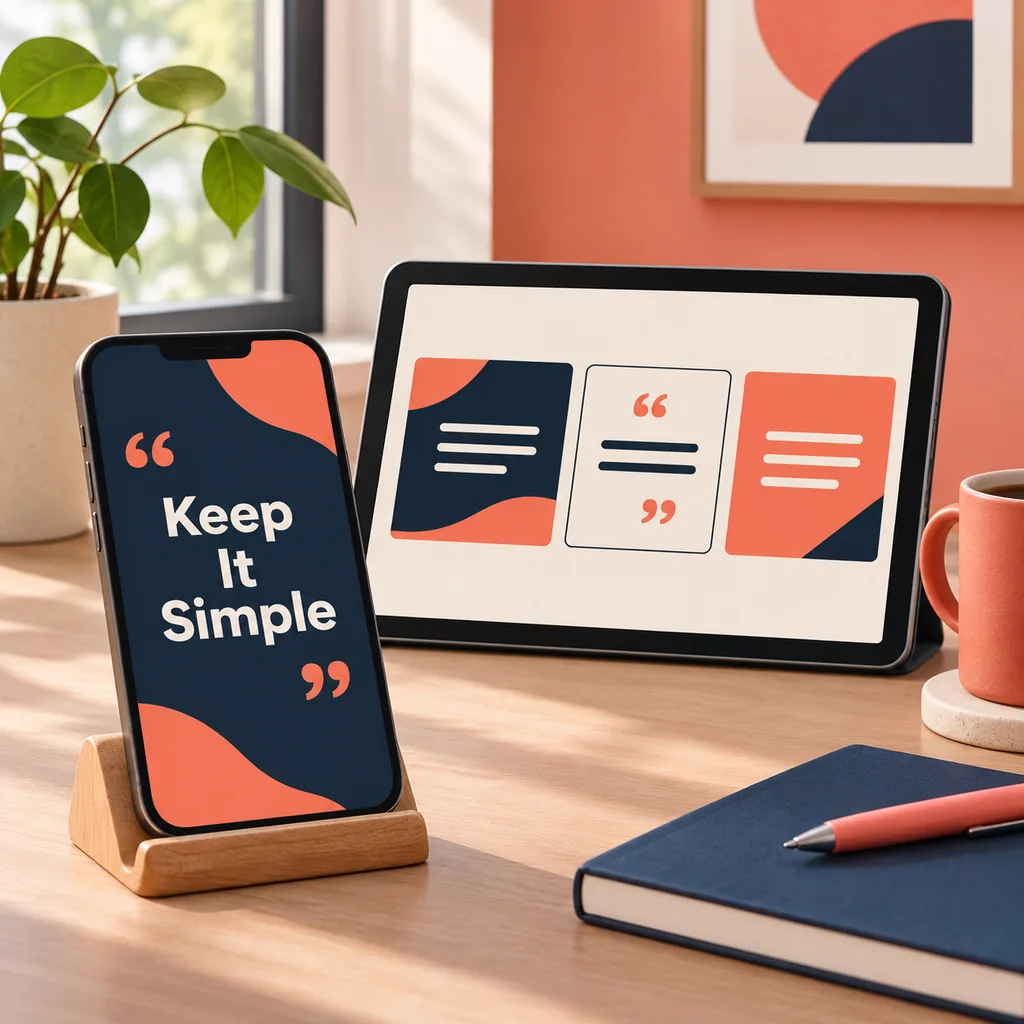
A quote image becomes easier to publish when the words, contrast, and canvas are planned together.
In this guide
If you are looking for a quote image generator, the important choice is not the most decorative template. It is a workflow that keeps the words accurate, the text readable, and the final file suited to the place where people will see it. This guide begins after the wording exists: you will choose a purpose, set a canvas, arrange type over a background, check attribution, and export a useful image. That boundary makes this article different from our guides about generating quote wording or extracting a quote from a paragraph.
1. What a quote image generator should do
A quote image generator turns a short piece of text into a visual asset. At minimum, it should give you a text area, a background or template choice, typography controls, a preview, and an export path. A stronger tool also helps you keep the quote inside a safe reading area, select a social format, and see how the result behaves before you download it.
The word generator can be misleading because the difficult part is often not inventing the sentence. You may already have a verified quotation, a team message, or an original line from a writing workflow. In that case the useful job is composition: preserve the wording, give it a clear visual hierarchy, and avoid turning a readable message into a busy poster.
- Text control: paste the final wording and keep line breaks intentional.
- Canvas control: choose a square, portrait, landscape, or story layout before styling.
- Type control: set a legible font, weight, size, and line spacing.
- Background control: use an image, color, or texture that leaves calm space behind the text.
- Output control: preview, download, and name the exported file clearly.
Lock the words before adding style
A quote image should not become the place where you discover that a sentence is inaccurate. Check the wording and attribution first, then let the design support the message.
2. Start with the quote and the audience
Before opening a quote image generator, write a one-line brief. Name the message, the audience, the channel, and the action you want the viewer to take. “A calm reminder for a product team after a delayed launch” gives you more direction than “make this inspirational.” The brief helps you reject backgrounds and fonts that look attractive but do not fit the situation.
Keep the text short enough to scan on a phone. If the idea needs a paragraph, publish the full explanation in the caption or article and use the image for one memorable line. For a real quotation, keep the author and source separate from the sentence during editing so a design choice never hides uncertain attribution.
- Name the job: Decide whether the card is for a feed post, a story, a presentation, a classroom reminder, or an internal message.
- Choose the reader: Write for one audience at a time. A student, customer, and colleague may need different vocabulary and tone.
- Trim the line: Remove greetings, explanations, and repeated words until the image carries one clear thought.
- Check the source: Confirm original wording and attribution, or label the line as an original or AI-assisted draft.
3. Choose a canvas for each social platform
A quote image can look polished in an editor and still feel awkward in a feed if the crop is wrong. Start with the destination format instead of resizing at the end. Square layouts are easy to reuse, portrait layouts occupy more phone screen, landscape layouts suit link previews and presentations, and tall story layouts need generous margins around the top and bottom interface areas.
Platform dimensions change over time, so treat the numbers in your design system as presets to verify rather than permanent rules. What matters for the article workflow is the decision: create the master message once, then make a deliberate version for each channel. Do not stretch a square card until the type becomes tiny or crop the author line out of a portrait version.
- Instagram feed: use a square or portrait composition with a short first line and strong central contrast.
- Stories and Reels: keep the quote away from the top and bottom controls and test it at phone width.
- LinkedIn: leave enough breathing room for a professional, text-led card that still works beside a caption.
- Pinterest: use a taller composition when the message benefits from a clear title, quote, and source line.
- X and link previews: prepare a landscape version when the image will sit beside a headline or article link.
Design the crop you will actually publish
Exporting five near-identical sizes is less useful than reviewing the one or two formats your audience will see. Keep the same wording, but allow the line breaks and margins to change.
4. Build hierarchy, contrast, and attribution
Readers should know what to read first, second, and third. The quote is the primary layer, the author or source is the secondary layer, and any brand mark or context is the quiet third layer. A quote image generator makes these choices faster, but it cannot decide whether a background is competing with a long sentence. Reduce visual noise before increasing font effects.
Contrast is more than light text on a dark photo. Look for a calm area behind the longest line, add a subtle overlay when needed, and compare the preview at the size people will see it. Avoid thin type over detailed faces, bright highlights behind punctuation, or a script font that turns two words into an unreadable shape.
- Use one display style for the quote and one restrained style for the attribution.
- Break lines at natural pauses, not after a random character count.
- Keep quotation marks, punctuation, and the author line consistent with the source.
- Use a quiet background zone or overlay so every word remains distinct.
- Check the smallest realistic preview, not only the full editor view.
- Treat logos and handles as supporting information; never let them overpower the quote.
5. Use a repeatable quote image workflow
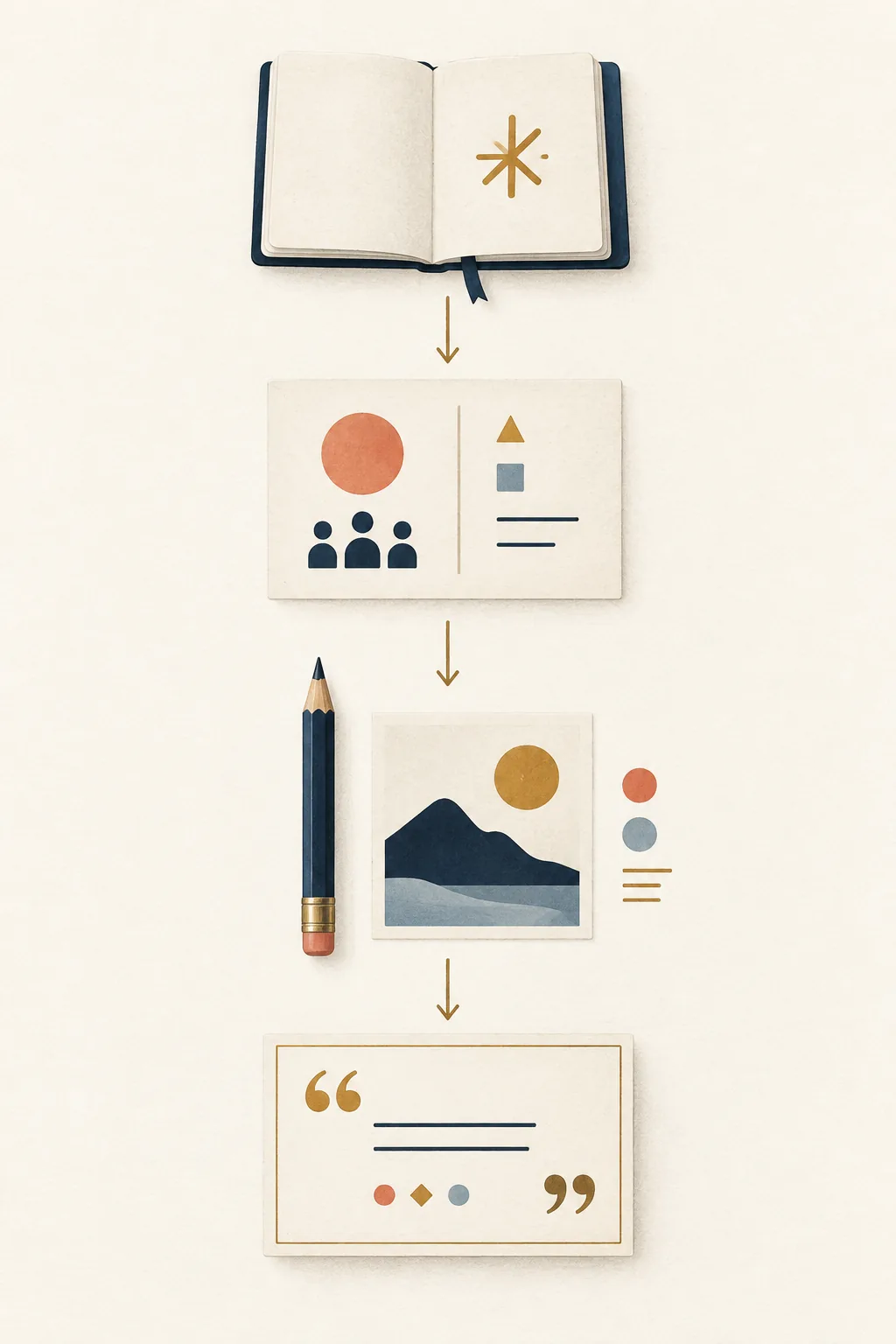
A repeatable process makes a quote image generator useful for more than one post. Save a small set of background categories, type pairings, and canvas presets, then choose from them according to the brief. Consistency is easier when the tool narrows the choices without forcing every quote into the same template.
Keep a working copy of the text outside the image editor. That lets you create a second language version, a corrected attribution, or a different platform crop without retyping the quote from a flattened export. When a tool offers local processing, use it for private drafts; when it sends files to a server, avoid confidential text and read the product's data-handling note.
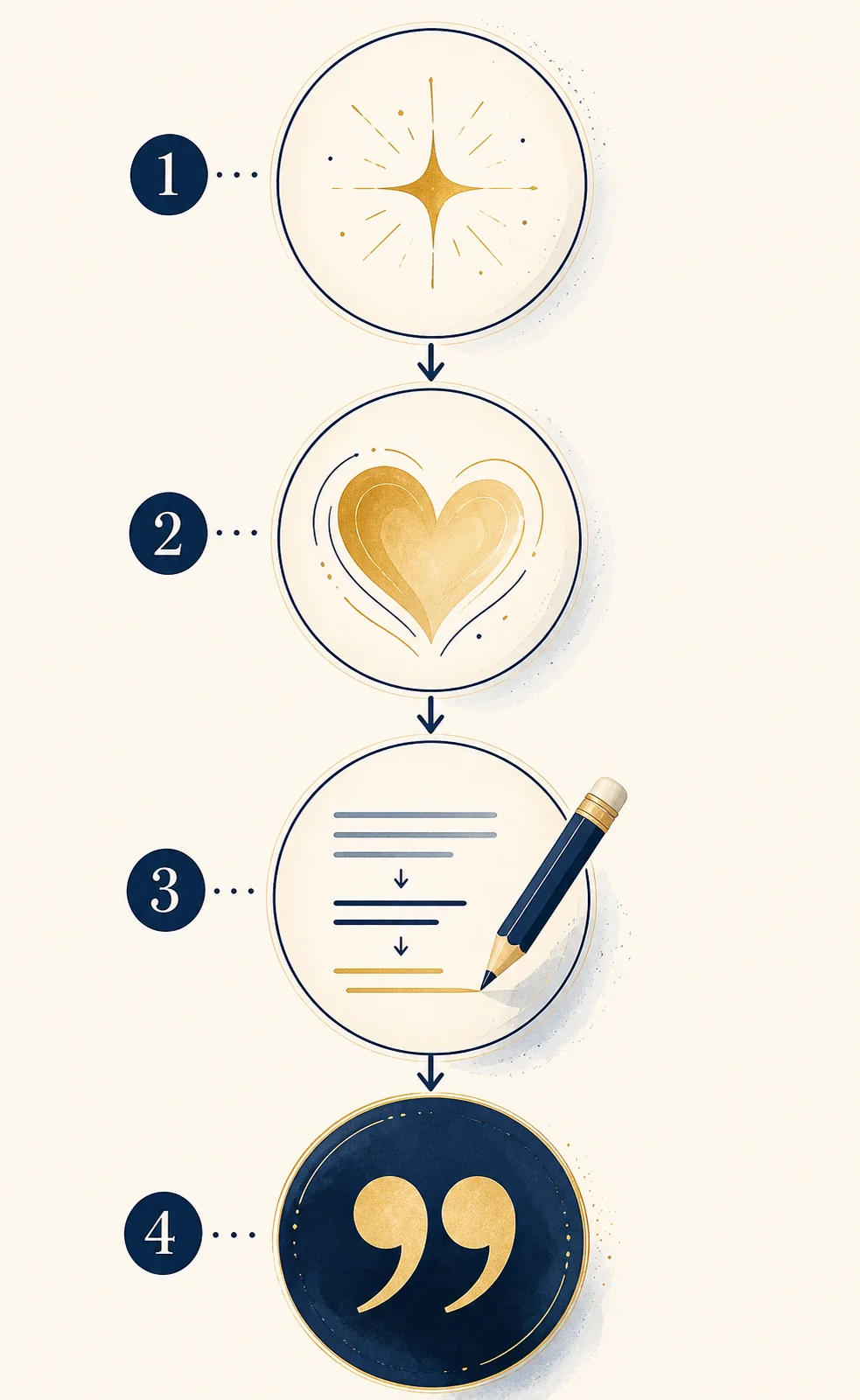
- Paste and proof: Add the approved quote, then check spelling, punctuation, line breaks, and the author or source line.
- Select the format: Choose the destination canvas and leave a safe margin for the platform interface and the viewer's crop.
- Choose the visual: Pick a background with a calm text area, then tune overlay, contrast, font, and spacing.
- Preview and export: Review the card at phone size, download the correct format, and keep the editable text for later versions.
- Label the file: Use a name such as topic-platform-date so the image can be found and corrected without guessing.
6. Review the image before you publish
The final review is where a fast design becomes a trustworthy asset. Read the image without the caption and ask whether the message still makes sense. Then compare the image with the source note or verified quotation. A beautiful card that changes a word, removes a negation, or assigns a line to the wrong person can spread a mistake much farther than a plain text draft.
Also check the practical details. Make sure the file is not blurry, the contrast survives compression, the export matches the intended platform, and the alt text or caption explains the visual when accessibility matters. If the quote contains a promise, statistic, or sensitive claim, keep the supporting context in the surrounding post instead of implying that the image alone proves it.
- Read every word at a realistic phone size and zoom level.
- Compare wording and attribution with the source you approved.
- Check that the crop does not remove punctuation, the author, or a needed qualifier.
- Confirm the export format, filename, dimensions, and compression quality.
- Write useful alt text that describes the quote card without repeating every decorative detail.
- Remove private or confidential text before uploading a draft to any service.
A generated image is still an editorial decision
Automation can speed up layout, but responsibility stays with the publisher. Verify facts, protect private text, and make the source status clear before a card is shared.
Examples for common quote-image jobs
Each example keeps the visual task separate from the writing task. The sample lines are original drafts for demonstration, not attributed quotations.
| Starting material | Design brief | Possible image text |
|---|---|---|
| Original line about steady practice | Square motivational quote image for a coaching post; calm background, high contrast, author field left blank. | Small practice becomes visible progress. |
| Verified quote with a known author | Portrait quote card for Pinterest; keep the source line readable and reserve a quiet margin around it. | Quote on top, author and source below, no invented context. |
| Short team message after a delay | Landscape LinkedIn graphic; professional palette, one clear sentence, no decorative icons competing with the text. | A slower launch can still move the work forward. |
| One-word idea: patience | Story-sized reflective card; use a simple plant or window-light background and test the line at phone width. | Patience is practice with a longer horizon. |
Choose the next quote workflow
Use the article to plan the visual job, then move to the tool that matches your starting material and desired output.
Generate the visual
Use the quote image generator to combine approved wording, a background, and a readable social format.
Try the quote image generatorBuild a card layout
Use the quote card generator when you need a focused template, type hierarchy, and export-ready card.
Open quote card generatorFix the wording first
If your starting material is a note rather than a finished line, turn it into an editable quote before designing the image.
Make a quote from textFrequently asked questions about quote image generators
What is a quote image generator?
It is a design workflow or tool that places a quote on a background or template and prepares a visual export. The best results still require a reviewed quote, a suitable canvas, readable type, and a checked source or attribution.
Should I use a quote picture generator or a quote card generator?
Use a quote picture generator when you want to combine wording with a photo or generated background. Use a quote card generator when a structured template, type hierarchy, and consistent card format matter more than a full scene.
What size should a quote image be for social media?
Choose a platform preset or verify the current specification before export. Square, portrait, landscape, and story formats serve different placements; do not stretch one canvas until the text becomes too small or the source line is cropped.
How do I make a quote image easy to read?
Use a short line, a quiet background area, strong contrast, generous margins, and a clear difference between quote text and attribution. Test the preview at the phone size where people will actually encounter it.
Can I use AI-generated backgrounds behind a quote?
You can when the tool and your intended use allow it, but review the background for distractions, licensing terms, and accidental text-like shapes. Keep the quote itself in normal editable text and do not imply that a generated scene proves the quote's source.
How should I credit a famous quotation in an image?
Use a verified author and source, keep the attribution readable, and avoid attaching a generated or paraphrased line to a real person. If the line is original or AI-assisted, label it honestly or leave the author field blank.
Is it safe to paste private text into an online quote image tool?
Treat public tools as unsuitable for confidential material unless their data-handling terms and your permissions allow it. Remove names, client details, and private business information, and prefer local processing for sensitive drafts when available.
Turn a finished line into a shareable visual
Bring an approved quote, choose the platform first, and let the layout support the message. A final preview and attribution check are what make a quick quote image ready for a real audience.
Try the quote image generator